1
Get a plan
Pick a plan on the game page, tick the agreement box and pay by card. The game unlocks in your account as soon as the payment is approved.
See the gamesFull AccessAll games · 30 days₺1,459
Just this game30 days₺449
Buy now
Seven steps, about five minutes, and you’re live. Each step comes with a picture of what you’ll see. Haven’t picked a game yet? Browse the TikTok LIVE games.
Pick a plan on the game page, tick the agreement box and pay by card. The game unlocks in your account as soon as the payment is approved.
See the gamesClick “My games” at the top right. Choose the game you want to play from the list on the left.
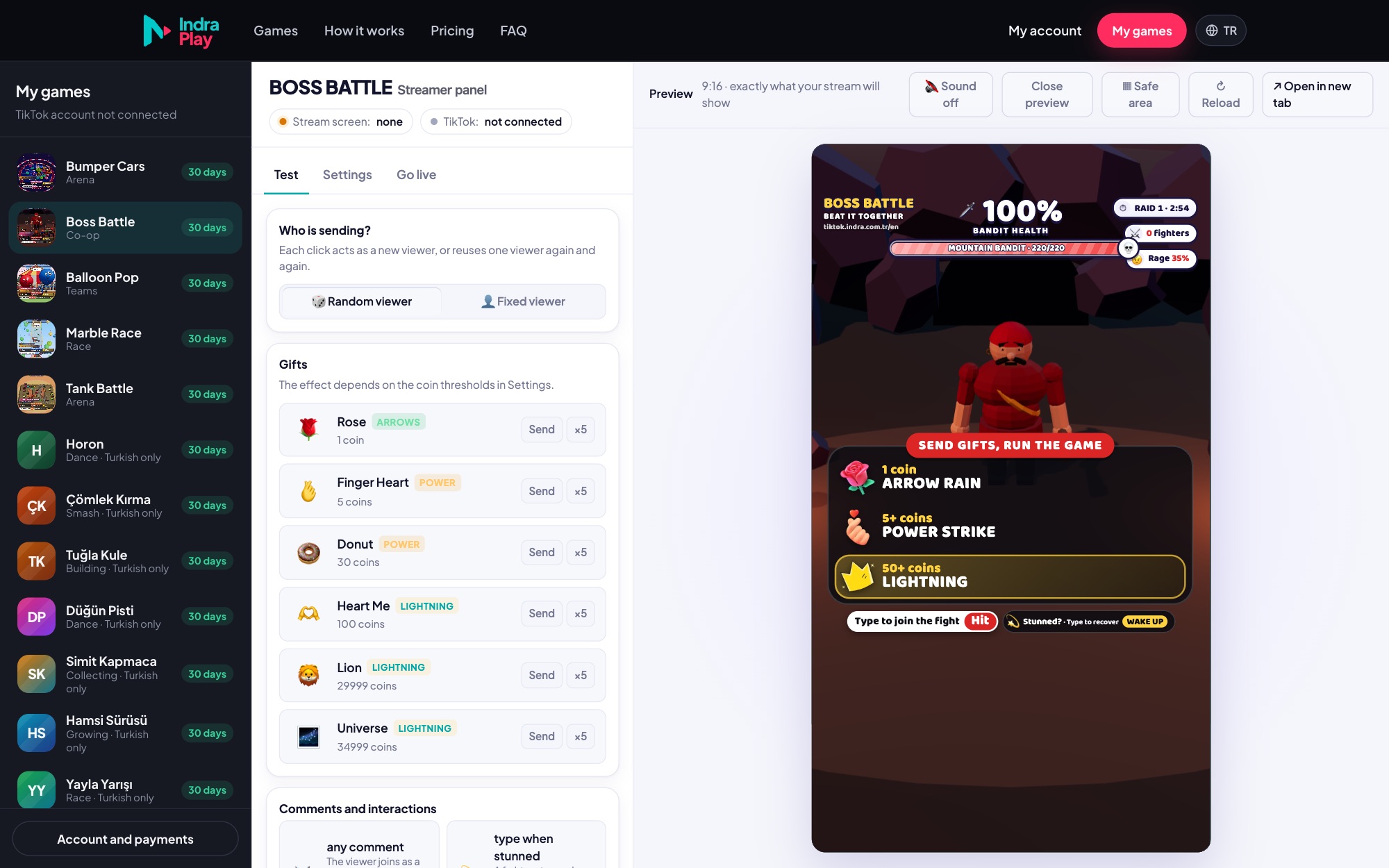
On the “Go live” tab, type your TikTok username and click Connect. Copy the game link on the same tab with the Copy button.
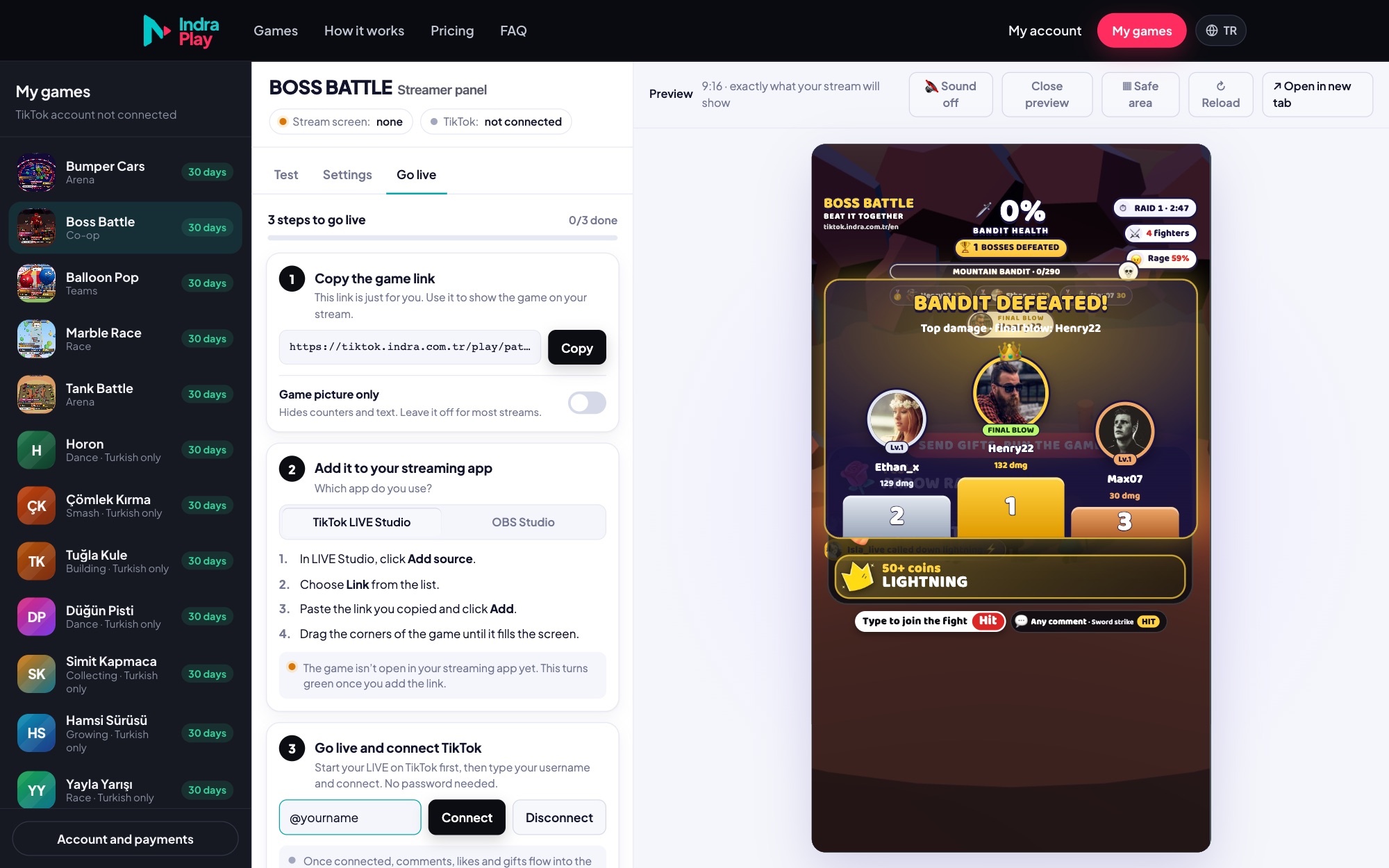
In TikTok LIVE Studio: Add source → Link. In OBS: Sources → + → Browser. Paste the link and resize the source to cover the vertical scene.
App drawings are illustrations; menu names may differ slightly between versions.
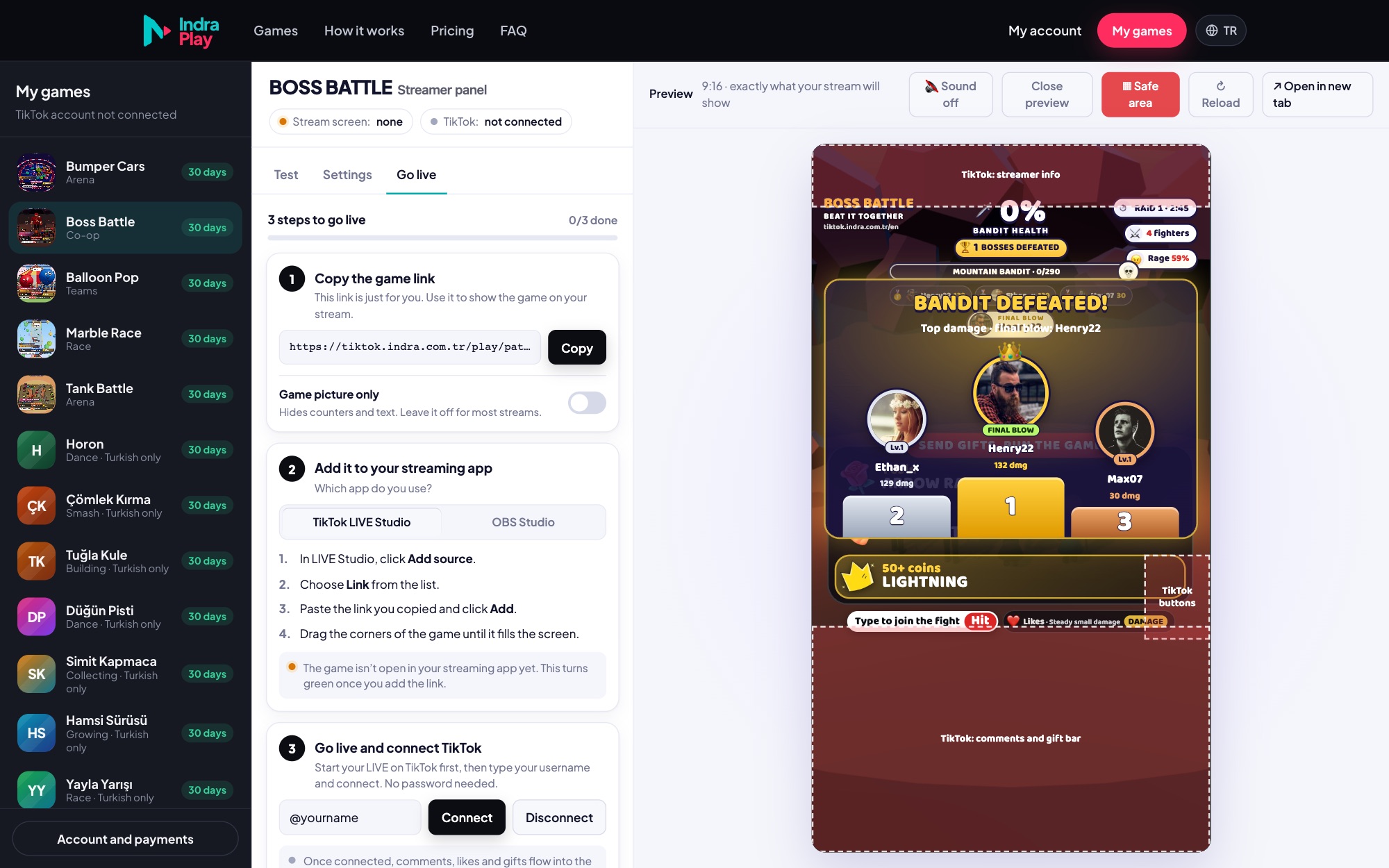
Press the “Safe area” button in the preview. The game keeps its text clear of TikTok’s comment and button areas; line up your scene accordingly.
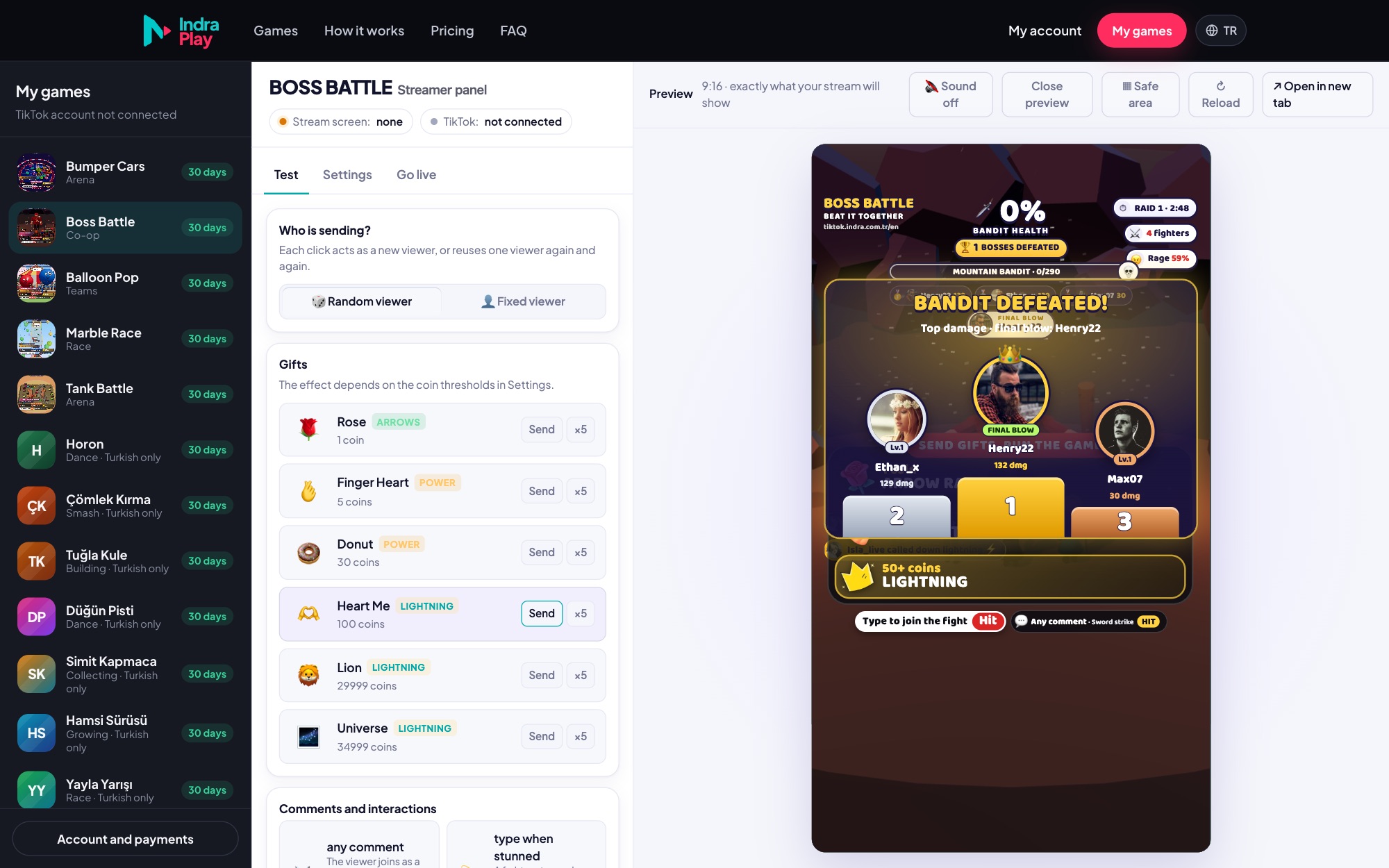
Send fake comments, likes and gifts from the “Test” tab. Set your gift thresholds and music here too.
Once you’re live, the game connects to your TikTok chat by itself. The “Stream screen” and “TikTok” indicators at the top of the panel turn green.
If both indicators are green, you’re all set.
Start your LIVE, wait 20–30 seconds and click Connect again on the “Go live” tab. TikTok can take a few seconds to report that a LIVE has started.
Type your username exactly as it appears after the @ sign, including dots and underscores. Make sure LIVE is enabled on your account.
Make sure you copied the whole link (the key at the end must not be cut off). The “Stream screen” indicator in the panel should say “1 open”; if it doesn’t, remove the source and add the link again.
Drag the source by its corners until it covers the whole scene. In OBS, right-click the source and choose Transform → Fit to screen. The game adapts to any size without cropping.
Click the source once and press “Tap for sound” in the middle. In OBS, “Control audio via OBS” must be on and the source must not be muted in the audio mixer.
Your plan has expired or doesn’t include this game. Renew it from your account; the game unlocks by itself within a minute.
In the panel’s Settings tab, set “Game language” to English. You can also add &lang=en to the end of the game link. Only games translated into English switch language.
Still stuck? Email hello@indra.com.tr with a screenshot.